
On November 17, 2015, Google-owned social media platform Google+ stepped into an unknown territory.
It went from being the ‘everything-for-everybody site’ to focusing on what Google+ is truly great at: passions.
The new Google+ is all about connecting around common interests (Collections and Communities) rather than people (Circles).
This Google+ tutorial covers everything you need to know about using the new Google+.
Google+ Tutorial: Table of Contents
Contents
- 1 Google+ Tutorial: Table of Contents
- 2 How to Take the New Google+ for a Spin
- 3 How to Use the New Google+
- 4 Get Started with Your Google Plus Home Stream
- 5 How to Connect with people on Google+
- 6 How to Use Circles on Google+
- 7 How to Get started with Google+ Collections
- 7.1 Google+ Collections vs. Communities
- 7.2 How to create a Google+ collection
- 7.3 How to edit or delete a Google+ Collection
- 7.4 Pin a post in your Google+ Collection
- 7.5 Delete a Google+ Collection
- 7.6 How to find and follow Google+ Collections
- 7.7 See another person’s Collections
- 7.8 How to unfollow a Google+ Collection
- 8 Get started with Google+ Communities
- 8.1 How to find and join Google+ Communities
- 8.2 Leave a Google+ Community
- 8.3 See another person’s Communities
- 8.4 Show more or less from a Google+ Community
- 8.5 Get notifications for a Google+ Community
- 8.6 How to create and edit a Google+ Community
- 8.7 Pin a post in your Google+ Community
- 8.8 Privacy settings for Google+ Communities
- 8.9 How to Moderate a Google+ Community
- 8.10 Remove or ban someone from a Google+ Community
- 8.11 Make someone a moderator or owner of your Google+ Community
- 8.12 Invite someone to join your Google+ Community
- 8.13 Remove a post or comment from your Community
- 9 Get Started with Sharing on Google+
- 10 How to Delete and Manage Your Google+ Activity
- 11 See and edit your Google+ profile
- 12 How to Change Google+ Settings
- 13 Google+ Keyboard Shorcuts
- 14 The New Google+ vs the Classic Google+
- 15 The New Google+: Marketing Takeaway
BONUS PDF DOWNLOAD: You could definitely use a handy PDF copy of this tutorial to download and use as a reference guide to the new Google+.
How to Take the New Google+ for a Spin
Invitations to try the new Google+ on the web are rolling out throughout the week.
You’ll be greeted with a pop-up at the bottom-left corner of the home stream inviting you to ‘Try the new Google+’ when it’s your turn in line.
BONUS TIP:
If you are dying to see what all the buzz is about NOW, you can force Google’s hand by going to your your Google+ activity page plus.google.com/apps/activities. Once on that page, simply click on the Search box and, voila!, the page will refresh revealing the new Google+.
If you use the Google+ app on a mobile phone, you’ll see the new Google+ when your app updates.
If you try out the new Google+ on the web and want to switch back to the classic Google+, click Back to classic G+ in the bottom left corner.
BIG FAT NOTE that applies to this entire Google+ tutorial:
As per Google, you can only see and change some settings on certain platforms. If you can’t find something you’re looking for, please try a different device.
How to Use the New Google+
The new Google+ is geared towards sharing links, videos, pictures, and other content with people who share your interests.
- Use your home stream to see posts based on your interests and what/who you follow.
- Use Collections to see and share posts based on topics you’re interested in.
- Use Communities to have conversations with other people who share your interests.
If you want to see what’s new in the new Google+ at a glance, read my post on LinkedIn:
Google Plus Is Dead - Long Live Google Plus!

Here’s a quick rundown on how to use Google+:
- Click on ‘Home’ to view your home stream - here you’ll see posts based on your interests and what/who you follow.
- Click on ‘Collections’ to see and share posts based on topics you’re interested in.
- Click on ‘Communities’ to have conversations with other people who share your interests.
- Click on ‘Profile’ to see your own posts.
- Click on ‘People’ to find people to follow, see who you are currently following (that’s where you manage your circles as well), or who follows you.
- Click on ‘Circle Streams’ to see streams (posts) from specific circles you’ve created. (NOTE: if you don’t see this option, go to Settings, scroll down to Advanced Settings, and turn on ‘Enable circle stream in navigation’.)
- In ‘Settings’ you can fine-tuned a few profile features, as well as your notifications.
- Click on ‘Back to classic G+’ to revert to the old Google+ version. Not sure how long this feature will be available.
BONUS PDF DOWNLOAD: You could definitely use a handy PDF copy of this tutorial to download and use as a reference guide to the new Google+.
Get Started with Your Google Plus Home Stream

You can see your Google+ home stream by choosing ‘Home’ in the Google+ menu.
This is where you see posts that other people have shared.
To fill your home stream with content that’s most interesting to you, follow Collections or join Communities based on your interests.
You might also see recommended content, which is popular content Google thinks you might like. (I am yet to see what that looks like.)
When you see a post in your Google+ home stream, you can:
- +1 it
- Comment on it
- Reshare it
- Mute it
- Report it
What does it mean to +1 a Google+ post?
You can use the +1 button to show that you like what someone else posted.
To +1 a Google+ post:
- Find the post you want to +1.
- Click or touch the +1 icon
 .
.
To undo a +1, touch the +1 icon again. You can also delete +1’s from your Activity Log.
SIDE NOTE:
To get to your Activity Log, go to Settings => Apps & Activities =>MANAGE GOOGLE+ ACTIVITY
To see it now, simply click on this link (it’ll go straight to your Activity Log assuming you are logged into Google+.)
Who can see your +1s:
- People in your network might see posts that you’ve +1ed in their stream and might get a notification that you +1ed their post.
- Anyone who can see a post can see who +1ed that post.
- Your Shared Endorsements settings affect how your name and picture might be used when you +1 ads.
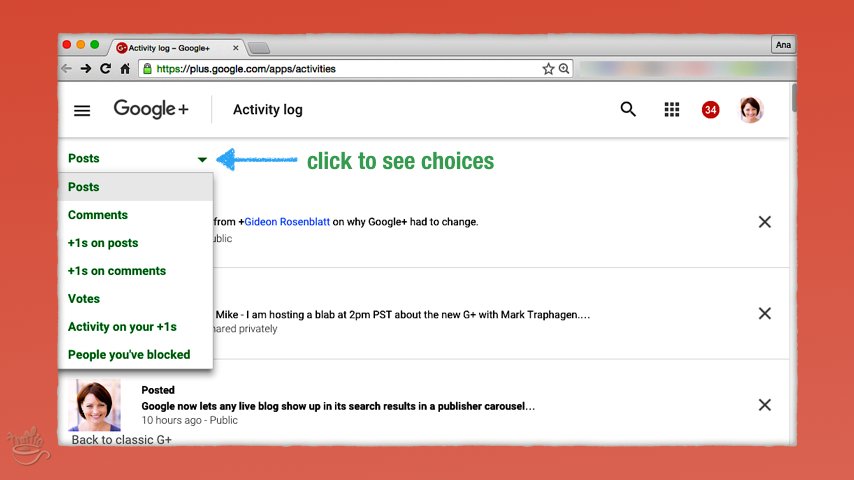
Once again, you can go back and see posts and comments you’ve +1ed, as well as remove your +1 by checking your Activity Log.
Here’s what your Google+ Activity Log looks like:
How do +1s make your Google+ posts more visible?
People who see posts and comments you make can +1 them.
Their followers might see that they +1ed your post or comment, and you might get a notification that someone +1ed your post or comment.
How to comment on a Google+ post
You can comment on Google+ posts that other people share.
Anyone who can see a post you comment on can see, reply to, and +1 your comment, unless you’ve blocked them or they blocked you.
To comment on a post:
- Open the post you want to comment on.
- Click or touch the comment icon
 .
. - Add your comment, then click or touch POST, ADD, or the send icon
 .
.
After you make a comment, you can edit or delete it:
- Find the comment you want to edit or delete.
- Touch your comment or click the menu icon
 .
. - Click or touch Edit or Delete comment.
SIDE NOTE:
If you don’t see the comment icon on a Google+ post, it means you don’t have permission to comment.
People can turn off comments on their posts after other people have made comments, so you might see comments on a post without being able to post a comment.
To reshare something someone else posted:
- On the post you want to reshare, click or touch the share icon.
- On a computer or the Android app:
 .
. - On iOS:
 .
.
- On a computer or the Android app:
- Click or touch Share on Google+.
- Choose who you want to share the post with.
- Click or touch POST (on a computer or the iOS app) or the post icon (on Android).
SIDE NOTE:
If you don’t see the share icon, it means the person who made the post chose not to let people reshare it. You can’t share privately shared posts publicly.
How to mute a Google+ post
Sometimes, a post you’ve shown interest in (commented on it or +1ed it) attracts a lot of activity from other people.
Thus you might start seeing that post at the top of your Google+ home stream and/or get notifications about it - again, again, and again.
If you no longer want to see a specific Google+ post in your home stream or get notifications about it, you can mute that post.
To mute a Google+ post:
- Open the post you want to mute.
- Click or touch the menu icon .
- Click or touch Mute or Mute post.
What’s the difference between the two?
When you mute a Google+ post, you’ll no longer see that post in your home stream or get notifications about it.
When you mute a person…
How to (and why) mute a person on Google+
If you don’t want to see posts or notifications from someone on Google+, you can mute that person.
To mute a person:
- Open the profile of the person you want to mute.
- Click or touch the menu icon .
- Click or touch Mute or Mute profile.
How to report abuse on Google+
If you see something on Google+ that violates their User Conduct and Content Policies, you can report it.
Report a Google+ post, comment, person, Collection, or Community:
- Open the post, comment, Collection, Community, or profile of the person you want to report.
- Touch or click the menu icon .
- Touch or click Report abuse (or for comments, Report comment).
Report a photo:
- Open the photo you want to report.
- Touch or click the menu icon .
- Touch or click Report abuse.
You can also block someone who is posting things you don’t want to see.
How to block someone on Google+
If you don’t want someone to be able connect with you on Google+, you can block them.
When you block someone in Google+:
- They won’t be able to see anything you post after you block them, or comments you leave on other people’s posts.
- They won’t be able to mention you in posts or comments on Google+, or comment on anything you’ve posted on Google+.
- You’ll be removed from each other’s circles. They also won’t be able to add you to circles.
- If the person you block is an owner or moderator of a Community you belong to, they can still see and moderate your comments and posts.
- They won’t be able to use Google Hangouts with you. Google+ blocks that affect Hangouts can also affect Google Voice.
- You can see people you’ve blocked and unblock them using your Activity Log.
IMPORTANT:
Blocking only works if the person you’ve blocked is signed in to their Google Account. For example, if the person you’ve blocked is signed in, they won’t be able to see your public posts. But if they aren’t signed in, they may be able to see public posts.
To block someone on Google+:
- Open the profile of the person you want to block.
- Click or touch the menu icon .
- Click or touch Block or Block profile.
TIP:
If you don’t want to see someone’s posts in your Google+ home stream, but you don’t want to block them, you can unfollow them.
How to Connect with people on Google+
Let’s take a deep breath… regroup… share this awesome (wouldn’t you say?!) tutorial on Twitter or anywhere else your peeps hang out at:
[share][/share]
…aaaaaand back to the tutorial.
You can follow someone on Google+ to see what they share in your home stream.
When you follow someone on Google+:
- They are added to your “Following” circle. (we’ll talk more about Google+ circles below)
- They might get a notification letting them know that you’re following them.
- They can see that you’re following them.
- They can choose what you see from them.
- They can see what you share and previously shared with your “Following” circle.
How to follow someone on Google+:
- Open the profile of the person you want to follow. You can search for their name, or click or touch their photo next to a comment or post they’ve made.
- Click or touch FOLLOW.
To unfollow someone on Google+:
- Open the profile of the person you want to unfollow. You can search for their name, or click or touch their photo next to a comment or post they’ve made.
- Click or touch FOLLOWING (or the name of the circle they’re in).
- Unselect the “Following” circle.
- Click or touch DONE or OK.
Other great ways to connect with people on Google+:
- Comment on posts;
- +1 posts and comments.
How to Use Circles on Google+
A-ha… the infamous circles… you do exist in the new Google+! For now anyway…
You can use Google+ circles to control who you share posts with.
BONUS PDF DOWNLOAD: You could definitely use a handy PDF copy of this tutorial to download and use as a reference guide to the new Google+.
Add people to a circle, then share a Collection or a post with that circle, so only those people can see it.
A few quick notes about Google+ circles:
- You can add someone to a circle even if they don’t follow you.
- People in your Google+ circles are able to see posts you share with that circle, including posts you shared with that circle before you added them.
- Doesn’t mean those people would necessarily see those posts in their home stream (so don’t spam by adding everyone and their dog to a circle!)
- They might get a notification letting them know you added them to one of your Google+ circles.
- People you add to circles may also be able to use Hangouts with you.
You can change your settings to choose whether to show people you have in circles on your Google+ profile.
You can see people you have in your circles by choosing People in your Navigation menu.

You can add someone to a circle or remove someone from a circle at any time.
How to create a Google+ circle:
- In the Navigation menu, click or touch People.
- Click or touch Following.
- Click or touch NEW CIRCLE.
- Name your circle, then click or touch CREATE.
How to add or remove someone from a Google+ circle:
When you follow someone, they are put in your “Following” circle by default.
To add someone to your “Following” circle, follow that person.
To add someone to a different Google+ circle:
- Open the profile of the person you want to move to another circle.
- Click or touch the name of the circle that they’re in, or the checkmark next to their name.
- Use the menu to add them to a different circle.
- Click or touch DONE.
To remove someone from a Google+ circle:
- Open the profile of the person you want to move to another circle.
- Click or touch the name of the circle that they’re in.
- In the menu that appears, uncheck a circle to remove them from that circle.
- Click or touch DONE.
How to share to a Google+ circle:
When you share a post, you can share to a specific circle. People may be able to see who else you shared a post with.
How to see your Google+ circle streams:
You can use circle streams to see posts from a specific circle.
Your Google+ circle streams are off by default. You can turn them on from the Settings menu: go to Settings => Advanced Settings => Enable circle stream in navigation.
Once you turn on circle streams, you can see them in your Navigation menu.
Sharing with ALL your circles vs specific circles:
When you create a new circle, it is automatically added to “Your circles.” If you don’t want to share posts to ALL of your circles, you can choose which ones to share with.
To choose if one of your circles is included when you share to “Your circles:”
On a computer:
- In the Navigation menu, click People.
- Click FOLLOWING.
- Next to the circle you want to add or remove, click the menu icon .
- Click Circle settings.
- Turn the option next to “Include when sharing with Your circles” on or off.
In the Android app:
- Open the People menu
 .
. - Touch FOLLOWING.
- Open the circle you want to add or remove from “Your circles.”
- Touch the menu icon .
- Touch Circle settings.
- Turn the option next to “Your circles” on or off.
How to Get started with Google+ Collections

With Google+ Collections, you can organize posts around topics, and let your followers choose what types of posts they want to see from you.
For example:
- Create separate Collections for photos, recipes, sports, or other interests. Your followers can choose which Collections they want to see.
- Create a Collection for personal photos and updates that only certain people can see.
When you create a Google+ Collection, you can:
- Choose who can see and follow your Collection
- Choose whether people who follow you will automatically follow that Collection
- See who’s following your Collection
- Post to that Collection
- Change how your Collection’s page looks
- Delete your Collection
When someone follows your Google+ Collection, they can:
- See posts you make in that Collection in their home stream
- +1, comment on, and reshare posts in your Collection
- Unfollow your Collection at any time
When you follow a Google+ Collection, you can:
- See posts from that Collection in your home stream
- Choose whether to get notifications about that Collection
- Unfollow that Collection at any time
Google+ Collections vs. Communities
On Google+, you can follow a Collection or join a Community.
Collections are created by just one person, and only that person can post to that Collection. You can follow someone else’s Collection to see what they share, but you can’t share posts into someone else’s Collection.
Communities can have more than one owner and moderator, and other people can join that Community. Once you’re a member of a Community, you can post to that Community. Members of that Community may see your posts in their home stream.
How to create a Google+ collection
You can create Collections in Google+ to organize your posts and share them with only the people you want to share with.
- Touch or click Collections
 .
. - Touch or click YOURS.
- Touch or click Create a Collection.
- Type a name for your Collection.
- To choose who can see your Collection, touch or click the menu next to Visible to:
- Touch or click CREATE or DONE.
After you create a Collection, you can edit or delete it any time.
How to see who’s following your Collection:
After you make a Collection in Google+, you can see who’s following it any time.
- Open the Collection you want to see followers for.
- Touch or click the menu icon .
- Choose Collection followers.
How to move a post into a Collection:
If you’ve already made a post, you can move it into a Collection.
- Open the public post you want to move.
- Touch the menu icon .
- Choose Move to Collection.
You can only move one post at a time, and you can only move public posts.
How to edit or delete a Google+ Collection
After you make a Collection, you can:
- change the name of your Collection,
- add a tagline,
- choose the background color,
- and change the cover photo.
You can also change the “following” setting for your Collection, which lets you choose whether people who follow you automatically follow that Collection.
However, you can’t change your Collection’s visibility settings after you create it. If you have shared your Collection with a circle, any new people you add to that circle will also be able to see the Collection.
Edit a Google+ Collection
To change the cover photo or background color of a Collection:
On a computer
- Open the Collection you want to edit.
- Click the menu icon .
- Click Edit Collection.
- Make your changes, then click SAVE.
On a mobile device
- Open the Collection you want to edit.
- Touch the paintbrush icon
 .
. - Make your changes, then touch DONE.
To change the name, tagline, or following settings for your Collection:
- Open the Collection you want to edit.
- Click or touch the menu icon .
- Click or touch Edit Collection.
- Make your changes, then click or touch SAVE.
Pin a post in your Google+ Collection
You can pin a post in your Collection to make that post show up at the top of the Collection’s page.
- Open the post in the Collection that you want to pin.
- Click or touch the menu icon .
- Click or touch Pin post or Pin to Collection.
Delete a Google+ Collection
You can delete a Collection any time, but you can’t undo a deletion. When you delete a Collection, all of the posts in that Collection are deleted.
To delete a Collection:
- Open the Collection you want to delete.
- Click or touch the menu icon .
- Click or touch Delete Collection.
How to find and follow Google+ Collections
When you follow someone’s Collection in Google+, posts they make to that Collection may show up in your stream.
TIP:
You can follow a Collection without following the person who made it.
How to find Google+ Collections to follow:
- Touch or click Collections .
- To follow a Collection, click or touch FOLLOW.
- To see a Collection’s page, click or touch that Collection’s picture.
- To see Collections created by other Google+ users, click or touch FEATURED.
- To search for Collections, click or touch the search icon
 .
.
See another person’s Collections
You can see another person’s Collections by visiting their profile.
Some of their Collections will show up at the top of their profile. You can click or touch MORE to see all of their Collections that you have permission to see.
How to unfollow a Google+ Collection
When you unfollow a Collection, you won’t see posts from that Collection in your stream.
To unfollow a Collection:
- Open the Collection you want to unfollow.
- Click or touch FOLLOWING.
BONUS PDF DOWNLOAD: You could definitely use a handy PDF copy of this tutorial to download and use as a reference guide to the new Google+.
Get started with Google+ Communities

With Google+ Communities, you can share content and have conversations with people who share your interests.
Posts from Communities you join can show up in your stream.
When you join a Community, you can:
- See what other people have posted to that Community in your stream
- Share posts to that Community for other members to see
- Comment on posts in that Community
- Leave that Community at any time
When you create a Community, you can:
- Choose who can see and join your Community
- Add other people as moderators and owners
- Remove a person from your Community
- Moderate posts and comments in your Community
- Edit how your Community page looks
- Delete your Community
How to find and join Google+ Communities
When you join a Community in Google+, you can see posts from that Community in your home stream and you can share posts to that Community.
You can see posts on public Community pages even if you aren’t a member of the Community.
Find Google+ Communities to join:
- Touch or click Communities
 .
. - To join a Community, touch or click JOIN. Communities that you need permission to join will say ASK TO JOIN instead.
- To see Communities created by other people on Google+, click or touch RECOMMENDED.
- To search for a Community by name, click or touch the search icon .
- To see a Community’s page, click or touch a Community’s picture.
NOTE:
If you join a “private” Community, only members can see your posts in that Community. Members and people who have been invited to join a private community can see who is currently in the Community.
If you join a public Community, anyone can see posts you make in that Community and a list of members of that Community.
Leave a Google+ Community
When you leave a Community:
- You won’t see regular updates from that Community in your home stream.
- You won’t be able to share posts to that Community.
- You may not be able to see the Community’s page.
To leave a Community on Google+:
- Open the Community you want to leave.
- Click or touch the menu icon .
- Click or touch Leave Community.
See another person’s Communities
You can see another person’s Communities by visiting their profile if they’ve chosen to share their Communities on their profile.
Some of their Communities may show up at the top of their profile. Click or touch MORE to see all of their Communities that you have permission to see.
NOTE:
You may not be able to see the Communities you’ve chosen to share on your profile on all platforms.
You can check the Communities you’ve chosen to share on your profile by switching back to classic Google+ and there you can edit which Communities you choose to share on your profile.
Show more or less from a Google+ Community
You can choose how much content from a Community shows up in your home stream.
To change this setting:
- Open the Community you want to see more or less from.
- Click or touch the menu icon .
- Click or touch Community settings.
- Click or touch the drop down menu next to “Volume of posts delivered to your home stream:” to choose the amount of posts you see from that Community.
To change this setting in the iOS app:
- Open the Community you want to see more or less from.
- Touch the menu icon .
- Touch View on web.
- Follow the steps above.
Get notifications for a Google+ Community
You can choose whether to get notifications from Communities that you join.
NOTE:
For some large Communities, you may not be able to turn notifications on.
On a computer
- Open the Community you want to change notification settings for.
- Click the menu icon .
- Click Community settings.
- Use the switch next to “Get notified about new posts” to turn notifications on or off.
On a mobile device
- Open the Community you want to change notification settings for.
- Touch the menu icon .
- Touch Turn notifications on or Turn notifications off.
How to create and edit a Google+ Community
You can make your own Communities on Google+ based on your interests. Other people can join and post to that Community, depending on the permissions you set.
When you create a Community, you are the owner, and you can moderate that Community.
To create a Community on a computer or the Android app:
- In the Navigation menu, click or touch Communities.
- Click or touch Yours.
- Click or touch Create a Community.
- Choose a name and visibility settings for your Community, then click or touch Done.
After you make a Google+ Community, you can:
- change its cover photo,
- change its name,
- change whether people need to ask to join,
- add categories, links, a description, and a location.
To edit your Google+ Community on a computer or the Android app:
- Open the Community you want to edit.
- Click or touch the menu icon .
- Click or touch Edit Community.
- Make your changes, then click or touch DONE.
To edit your Google+ Community in the iOS app:
- Open the Community you want to edit.
- Touch the menu icon .
- Touch View on web.
- Follow the steps above.
To delete your Community using the Android app:
- Open the Community you want to delete.
- Click or touch the menu icon .
- Click or touch Delete Community.
Pin a post in your Google+ Community
You can pin a post in your Community to make that post show up at the top of the Community’s page.
- Open the post you want to pin in the Community.
- Click or touch the menu icon .
- Click or touch Pin post or Pin to Community.
Privacy settings for Google+ Communities
When you make a Community, you can set its privacy settings, but you can’t change those settings after you make your Community.
Public Communities are open to anyone. They show up in search. Anyone can see and join (or request to join) them. Anyone can see a public Community’s posts and members.
Private Communities let you share posts with other members. Only members can see a private Community’s posts and members and invitees can see the member list. Communities can show up in search, depending on their settings.
If you make a Community private, you can choose whether it shows up when people search for Communities in Google+. If you make a Community private but searchable, people will be able to ask to join your Community. People who aren’t in a private Community can see its name and picture.
Note for private Communities that are not searchable and that people cannot ask to join: If someone has the link to your Community, they’ll still be see your Community’s name and photo. Other pages and content (including websites, blogs, and Google products such as Picasa Web) that link to your community can still appear in search results on Google and other search engines.
How to Moderate a Google+ Community
When you make a new Google+ Community, you become the owner and can make other people moderators or owners.
A Google+ Community owner can:
- Invite people to join the Community
- Approve requests to join the Community
- Ban or remove people from the Community
- Edit information about the Community
- Delete the Community
- Make other members of the Community moderators or owners
- Demote moderators and owners
- Moderate posts and comments in the Community
You can also become a moderator of a Community that you didn’t make.
A Google+ Community moderator can:
- Invite people to join the Community
- Approve requests to join the Community
- Ban or remove people from the Community
- Moderate posts and comments in the Community
- Step down as a moderator and become a member
Remove or ban someone from a Google+ Community
Removing someone makes them leave the Community, but they can join it again if they want to.
Banning someone prevents them from joining the Community again unless you un-ban them.
When you remove or ban someone, posts and comments they already made in that Community are not removed from the Community.
To remove or ban someone from a Community, you must be an owner or a moderator.
- Open the Community you want to remove or ban someone from.
- Click or touch the pictures of your Community members.
- Next to the person you want to remove or ban, click or touch the menu icon .
- Choose Ban from Community or Remove from Community.
Make someone a moderator or owner of your Google+ Community
You can make someone a moderator or an owner of your Google+ Community.
Someone has to be a moderator before you can make them an owner.
- Open the Community you want to make someone a moderator or owner of.
- Click or touch the pictures of your Community members.
- Next to the person you want to promote, click or touch the menu icon .
- On a computer or the iOS app, choose Promote from member to moderator or Promote from moderator to owner.
- In the Android app, choose Promote to moderator or Promote to owner.
If you don’t want someone to be a moderator or owner of your Community anymore, follow the steps above and choose:
- On a computer or the iOS app: Demote from moderator to member or Demote from owner to moderator.
- In the Android app: Demote to member or Demote to moderator.
In the iOS app:
- Open the Community you want to make someone a moderator or owner of.
- Open the menu .
- Choose View on web.
- Follow the steps above.
Invite someone to join your Google+ Community
You can invite people to join your Google+ Community.
Inviting someone to your Community lets you create and share a post about your Community with that person, and for “private” or “request to join” Communities adds them to the “Invited” members list, which only moderators and owners can see.
- Open the Community you want to invite someone to.
- Click or touch the share icon.
- On a computer: .
- In the iOS app: .
- In the Android app: .
- On a computer:
- If a menu appears, choose Invite people.
- Choose who you want to invite, then share your post.
In “private” or “request to join” Communities you can cancel an existing invitation:
- Open the Community you want to cancel the invitation for.
- Click or touch the pictures of your Community members.
- Filter the list to “Invited.”
- Touch or click the menu icon next to the person’s name.
- Touch or click Cancel invitation.
Remove a post or comment from your Community
You can moderate posts and comments in your Google+ Community that members make.
When you remove a post or comment from your Community:
- No one in that Community can see, share, comment on, or +1 that post or comment in your Community, except the person who made it.
- If the post was reshared to another Community or Collection, people can see it there.
- People may still see the post on the profile of the person who made it.
To moderate a post or comment in your Community:
- Open the post or comment you want to remove from your Community.
- Click or touch the menu icon .
- Click or touch Remove, Remove comment, or Remove post.
Some posts may be automatically categorized as possible spam.
Those posts will only show up in the community for owners and moderators, who need to decide whether to accept or reject the posts.
Get Started with Sharing on Google+
When you share a post on Google+, people who follow you and have permission to see that post can see it in their streams. Posts you share can also show up on your profile.
You can choose who can see what you share by sharing posts to Collections, Communities, or people.
Sharing Google+ posts publicly
When you share a Google+ post with “public,” anyone can see it, even if they’re not using Google+.
How to share a post on Google+:
On a computer
- Click the share icon
 .
. - Type your post.
- To share a photo, click the photo icon
 .
. - To share a link, click the link icon
 .
. - To share your location, click the location icon
 .
.
- To share a photo, click the photo icon
- To choose who to share the post with, click the blue text next to your name. You can share with a person, a Collection, a Community, or a circle.
- Click POST.
On a mobile device
- Touch the share icon .
- Type your post.
- To share a photo, touch the photo icon .
- To share a link, touch the link icon .
- To share a photo, touch the photo icon
- To choose who to share the post with, touch the blue text next to your name. You can share with a person, a Collection, a Community, or a circle.
- On iOS, touch POST. On Android, touch the post icon .
To reshare something someone else posted:
- On the post you want to reshare, click or touch the share icon.
- On a computer or the Android app: .
- On iOS: .
- On a computer or the Android app:
- Click or touch Share on Google+.
- Choose who you want to share the post with.
- Click or touch POST (on a computer or the iOS app) or the post icon (on Android).
NOTE:
If you don’t see the share icon, it means the person who made the post chose not to let people reshare it. You can’t share privately shared posts publicly.
You can share the URL of a public post from Google+ to another service like Facebook, Pinterest, or Twitter by sharing externally.
To share a public Google+ post externally:
- Open the post you want to share externally.
- Click or touch the share icon
- On a computer or in the Android app: .
- In the iOS app: .
- On a computer or in the Android app:
- Click or touch Share anywhere or Share via…, or choose where you want to share it.
- Choose the website you want to share the post to.
You can make changes to a post after you’ve shared it on Google+.
To edit a post:
- Open the post you want to edit.
- Click or touch the menu icon .
- Click or touch Edit post.
- Make your changes, then click DONE or touch SAVE or the send icon .
You can also delete your post.
Sharing geo location information in photos
Google+ lets you include geo location data when you share a photo. This setting is turned off by default.
If you turn this setting on, people can see where your photos were taken when they open or download your photo.
To turn this setting on or off:
On a computer:
- Open the Navigation menu, then choose Settings.
- Scroll to “Show geo location by default on newly shared albums” and use the switch to change your setting.
In the Android app:
- Open the Navigation menu, then choose Settings.
- Choose the account you want to change settings for.
- Touch Photos and videos shared on Google+.
- Use the checkbox next to “Location” to change your geo location setting.
Prevent people from commenting on or resharing your post
When you make a post, people can comment on it and reshare it by default.
If you don’t want people to be able to comment on or reshare a post you make, you can change that setting.
To stop people from commenting on or resharing your post:
- Open the post you want to turn off commenting or resharing for. You can also change this setting when you are making a post.
- Touch the menu icon .
- Choose Disable comments or Disable reshares.
You can delete a comment someone left on your post by opening the menu in the comment and choosing Delete comment.
You can also change who can comment on your public posts using the Settings menu.
Google+ and Search
The content you share publicly in Google+ is publicly searchable - even if your Google profile isn’t.
The content that you share to specific circles or people is only searchable by the people it was shared with.
There’s no way to make the content you share not searchable.
BONUS PDF DOWNLOAD: You could definitely use a handy PDF copy of this tutorial to download and use as a reference guide to the new Google+.
How to Delete and Manage Your Google+ Activity
When you share a post, make a comment, or +1 something, you can delete your activity later.
You can also edit your post or delete your Google+ profile.
Delete a Google+ post or comment:
To delete a post or comment that you’ve made:
- Open the post that you shared or commented on by clicking or touching the post.
- To delete a post, click or touch the menu icon .
- Click Delete or touch Delete post.
- To delete a comment, click or touch the comment, then click or touch Delete comment.
Undo a +1
To undo a +1 on a post, click or touch the +1 button again.
To undo a +1 on a comment:
- On a computer, click the +1 button again.
- On a mobile device, touch the comment, then touch Remove +1.
Delete a post, comment, poll vote, or +1 using the Activity Log
If you can’t find a post you shared, commented on, or +1’ed, but still want to delete your activity, you can use the Activity Log.
To delete activity using the Activity Log:
- In the Navigation menu, choose Settings.
- In the Android app, choose an account to manage.
- Click or touch Activity Log or Manage Google+ Activity.
- To see different kinds of activities, like posts and +1’s, click or touch the drop-down menu at the top.
- To delete an activity, click or touch the X next to the activity you want to delete.
See and edit your Google+ profile
Your Google+ profile includes posts you’ve made on Google+, Collections you’ve created or followed and Communities you’ve joined.
A few ‘good-to-knows’ about your Google+ profile:
- You can also add a cover photo, a profile photo, and a tagline, which are public.
- To see your Google+ profile, click Profile in the navigation menu.
- From your Google+ profile, people can also see more information about you by clicking on the information icon
 .
. - You can also edit some of this information through About Me.
- When you change your name, tagline, profile photo, or cover photo in Google+, it is reflected in your About Me information.
How to edit your Google+ profile
You can edit your Google+ profile to:
- Change what Communities show up on your Google+ profile
- Choose whether to show Collections you follow on your Google+ profile
- Add or change a tagline
- Change your cover and profile photos
Note that Collections you own will be displayed on your profile automatically to people you have shared them with. For example, public collections you have created may be displayed to anyone who visits your profile.
NOTE:
Profiles look different in the new Google+, and other information may show up on your old Google+ profile.
You can switch back to classic Google+ to see and edit your old Google+ profile.
Profiles may also look different on different platforms.
To edit your Google+ profile on a computer:
- Open your Google+ profile by opening the Navigation menu, then clicking Profile.
- Click Edit profile.
- Make your changes, then click SAVE.
Edit your About Me information from Google+
Because people can see your About Me information using Google+, you can edit some of your Google-wide About Me information, including your name and nickname, from Google+.
NOTE:
When you make changes to your About Me information from Google+, those changes will show up in other Google products where people can see your About Me information.
To edit your About Me information from Google+:
- Open your Google+ profile by opening the Navigation menu, then touching Profile.
- Touch the info icon .
- To make changes to a section, touch the pencil icon .
About +Pages
You can use +Pages to make Google+ pages for anything that isn’t a person, like a business, a band, or a team.
To create and edit +pages, or to add and remove managers, you can visit the Google My Business Help Center.
You can use Google My Business to manage your +Pages.
How to Change Google+ Settings
You can change your Google+ settings by opening the Navigation menu and choosing Settings.
In the Android app, you need to select an Account after you open Settings.
Google+ Profile Setting
You can choose what information shows up on your Google+ profile. You can also edit your Google+ profile by navigating to your profile.
Some parts of your profile only show up to people looking at your profile using classic Google+.
You can also choose whether to help others discover your profile in search results.
Notifications settings
You can turn notifications on or off based on specific actions, like when someone mentions you in a post or invites you to a Community.
NOTE:
You may not receive certain low priority notifications on all devices.
Stream settings
You can choose whether your home screen always shows up in a single-column layout or shows up with multiple columns when your screen size is big enough.
Some accessibility settings, like heading navigation, work best with the single-column layout.
You can only see and change this setting using a computer.
Photo and video settings
You can choose whether to include geo location by default on photos you share.
You can choose whether people can download the photos and videos you share.
You can also choose whether photos you share publicly on Google+ can be used as background images by Google.
Unless you change this setting, photos you share publicly may be featured on Google products like Chromecast and Google Fiber. You’ll get an email from Google if one of your photos gets featured.
Sharing settings
You can change visibility settings for your +1 activity.
Location settings
You can use the “Location” settings in Google+ to change your Google Account location settings.
Contact settings
You can choose whether people you connect with on Google+ get added to your Android contacts.
You can also turn “Improve suggestions” on or off, which lets Google use data from your device to make suggestions for you in Google+.
You can only see and change these settings using the Android app.
Apps with Google+ Sign In
You can manage apps you’ve connected to your Google Account from the Google+ settings page.
You can only access this setting using the Android app.
General settings
You can choose who can comment on your public posts.
Activity log
Once again, you can use the Settings page to see and make changes to your Activity Log.
You may need to first click Manage Google+ Activities.
The Activity Log lets you manage and delete your activities on Google+, like comments, +1’s, or posts.
Shared endorsements in ads
You can turn shared endorsements in ads on or off. Learn more.
Circle stream settings
You can choose whether to show circle streams in your Home menu.
To see circle streams in the iOS app, open the circle you want to see a stream for, touch the menu icon, and choose View circle stream.
Google+ Keyboard Shorcuts
Here’s a huge time saver (hat tip +CircleCount - the site that helps you to understand Google+ better): learning these Google+ keyboard shortcuts will definitely save you a few mouse clicks and a few minutes to spend on better things.

Click here to pin the image on Pinterest - save it for later reference
The New Google+ vs the Classic Google+
…Taking a deeeeeeep breath… This humongous, but extremely helpful Google+ Tutorial is almost over. You made it all the way to the end!
This seems like a good place to mention a few odds-and-ends - a few differences between the old (aka ‘classic’) Google+ and the new one.
What happened to Google+ Events?
In the new Google+, you can only make new events in the Android app.
To make events on a computer, switch back to classic Google+.
Google+ Polls
If you’re using the new iOS app or the new Google+ on your computer, you’ll be able to vote on a poll but not create one.
Switch back to classic Google+, or use the Android app to make a new poll.
Location Sharing
With the new Google+, you can:
- See locations that people are sharing with you in their Google Account information.
- See everyone sharing location with you on a map with Locations in the Android app.
You can no longer share your location from the new Google+ iOS app. If you previously set up Location Sharing with the iOS app, you can use My Account to see and change your Location Sharing settings and can continue sharing your location if you’re using Location History in the Google app.
Google+ Hangouts
Google+ Hangouts has been moved to its own home at hangouts.google.com.
Here’s a helpful post on scheduling a Hangout on Air:
How to schedule a Hangout on Air after switching to the new Google+ - Peggy K on Google+
Also, for Chrome users, this Google Hangouts Chrome browser extension will making accessing Hangouts a breeze.
BONUS PDF DOWNLOAD: You could definitely use a handy PDF copy of this tutorial to download and use as a reference guide to the new Google+.
The New Google+: Marketing Takeaway
Some say Google+ is dead.
Some say Google+ has finally found itself.
What do I say?
If it hadn’t been for Google+, I might’ve not met some of the brightest minds in the marketing industry today - Eric Enge, Mark Traphagen, Chef Dennis Littley, Rebekah Radice, Peg Fitzpatrick, Mike Allton, Martin Shervington, MaAnna Stephenson, Denis Labelle, Glenn Gabe, Yifat Cohen, Gina Fiedel, Stephan Hovnanian, Dustin Stout, David Amerland, Eli Fennell, Ronnie Bincer, Christine DeGraff, Mia Voss, Vincent Messina, Linda Buquet and many, many, many more.
If you, too, want to meet and build strong relationships with some of the best deep thinkers in just about any niche, Google+ is definitely for you.
I’d also highly recommend you listen to the recent blab I hosted with Mark Traphagen, Dustin Stout, and Eric Enge as my guests, on the future of Google+ - this is an excellent, excellent listen on the topic:
Google+ is dead, long live Google+!
And on that note, I leave you to go explore the new Google+ for yourself - on one condition: don’t forget to come back and let me know what you think.
Off to play with the new Google+,


Thank you for such an in-depth post. I’m decent with tech, and find even the new G+ to be user friendly. My quandary stems from the moderator bit. I’m a mod in a community of 5k people. We have shut down entry until we can purge of the inactive users. OMG, between the mods and owners we cannot figure out how to easily and effectively do this!!! How do we export a full member list? Can we even do that? G+ can’t possibly expect us to manage 5k people by scrolling through the names 10 at a time?? I wish we could see activity levels (I mean, hangouts tells you when last someone was active, why not G+? It would rock!!). Anyway, even just a list of members would be life altering… Do you know anyway to achieve this???
Hey, Mandy - you are so very welcome!
I’d check out Circloscope Chrome extension http://tgcafe.it/2gqDVYr. I haven’t had a need to do what you need to do, but I am pretty sure Circloscope has the functionality you are looking for.
(heads-up: looks like Circloscope is no longer in business, but the extension does work!)
Hope you can use it to make your life easier, Mandy. 😉
In a community, is there a way to have different pages for different subjects? I saw Categories, but does that have anything to do with it, if so, how do I access it?
You are correct, Lilly - categories is what you’d use for topics/subjects.
To access categories from the Community page, find the three vertical dots under Community profile image. Click on those, then choose ‘Edit Community’. That’s where you’ll find categories and will be able to add more.
Hope this helps!
Hi, Ana! Thanks for the tutorial. What keeps me from using the new Google+ is that I still have not found a way to search through my own posts. While in the “classic” Google+ there is a way to do it, as long as it is still available - though it is a bit concealed: 1) go to your profile page using menu; 2) type your search words in the search box on the top of your profile page, then click the magnifying glass button on the right of the search box; 3) once search results appear will contain everything and you need to filter only own posts, to do so 4) in the menu bar which is between the search box on top and the results below, click the rightmost “More” item. The submenu list will drop down, showing items Hangouts, Events, From your circles, From you, To you. 5) click on “From you” submenu item - and that’s it. The search result will show only your own posts. The question is: HOW TO ACHIEVE THE SAME IN NEW GOOGLE+ ?
I know, Sergei, I know…
For a search engine, Google did make G+ search extremely challenging! ?
Try searching for the keywords + [your name] (in square brackets like that.) I found that’s the closest to searching posts by you.
An even better way to do it is to actually use Google search. Just go to Google and type ‘your keyword +your name’.
For instance, if I were to search for my latest post about Vine, I’d type vine +ana hoffman. The first result is exactly what I am searching for.
Let me know how it goes!
Wow, you are a wizard! The first way within G+ using square brackets does the job. All is well with the search output, but the order. The most recent posts come first as expected, the rest seem to be unarranged, like a 2016 post, then suddenly a 2012 which I never searched or opened since then, then 2013.
As for the second way, it works, but not as good. Showed me only my two most recent posts, then sayed “Some results may have been delisted consistent with local information law.” WTF? Those were my own posts and I was logged in as myself… And then again - they showed me 2 posts already. Maybe the older posts are just not cached in Google search, only in Google+?
Anyway, thanks a lot. And maybe you know how to put the search result in order, by date, ascending/descending, etc. - using first way?
Sorry, Sergei - not THAT smart ?, couldn’t figure out how to search by date.
On the second issue though… I am pretty sure there are some laws in your country that prevents Google from displaying certain info in search results - whether those posts are yours or third-party.
Where do you live, by the way? Your name is very Russian, but don’t want to assume anything.
Ana, I meant searching by content, then putting the results in order (sorting) by date. I thought you might know some keywords and syntax for some more specific search. As for the second issue - I am sure this is not because of local laws (yes, I’m in Russia). All the posts were shared privately to my family and all about my family, they contain nothing that could be restricted, I am sure. Besides those two posts that I get - they do not differ much from the rest by content - they are all about the same things. When I search in a chrome incognito window (so that I’m not logged in), it shows none of my posts at all, and lots (many pages) of useless links - it seems to be right. But when I search being logged in - I get just my two recent G+ posts, further comes nothing at all, just empty white space. Thanks for your time. Sergei.
I’m pretty sure I got what you meant about “searching by content, then putting the results in order (sorting) by date”, Sergei. 😉
As far as not finding the results you’d expect to find in a Google search, not sure what to tell you.
My best guess was that Russia might be holding Google searches hostage in the battle for the Russian search market domination… many European countries are trying to squeeze Google out or else pay hefty taxes to maintain its presences in those countries. Not sure if Russia decided to join those ranks.
Anyway, at least you could somewhat customize your G+ searches with my first tip! Wish I could help more with the second part…
Is it possible to not see what people 1+
You can definitely see who +1 what as far as YOUR posts are concerned, Seth.
Is there a way to stop seeing what people in my circles 1+?
Unfortunately, don’t see a way to do that, Seth. (I do understand how those +1’s could get a bit annoying if you follow people who love clicking on that… 😉 Uncircle those folks?…)
just a SIMPLE question :
How to chat? lol.
that’s the only reason i’m not using th enew design and still oging back to the classic google+ everytime
can’t find out yet xd
Unfortunately, there’s no chatting function in the new G+. I have a feeling it’s because it wasn’t used enough for them to keep it.
Fair warning: G+ will start switching everyone to the new interface soon! 😉
Ahh I see…wonder if chatting was that of a burden in G+ … meh as long as they keep the Hangouts section up is good enough i guess
Thanks for your reply
And here comes the next blow… Hangouts has now completely moved to YouTube Live. ;(
Hi Ana,
This is just what I needed. I’ve opened a + account but didn’t know where or how to start until I came across your tutorial. Most others are a few years old so something on the new version is an excellent find.
Facebook, Twitter, and G+ is my lot.
It covers everything a newbie needs to get off the ground with Google+.
Thanks again.
Alan
I absolutely agree, Alan - that’s a good roundup of social media platforms, especially when you are first starting.
Any questions, feel free to ask.
Excellent tutorial! Thank you so much for putting this together.
Pleasure, Justine.
Hello Ana,
From your blog I cam to know a lot about google plus. But One more thing I like to know and that is should I know as a beginner how can I choose a niche to build a site on.
That’s a great question, Shahriar, and many bloggers are a lot more competent to respond to it than I am. Picking a niche is not my… niche. 😉
Absolutely love the new google+ design, it has improved a lot and loads faster than before. This post has everything one needs to know about it, thanks Ana!
Hear, hear, Jacob; thanks for coming by.
This to me is completed guide on Google+, if this can go into a book or publish into a page it would even be better for readers.
Well, thank you, Louis.
This is by far the most comprehensive Google+ guide I’ve ever seen, but I have to ask - is Google+ still worth using nowadays? Does it have any growth potential or is it a dying platform? I’ve never really paid it much mind because I thought no one else did, but maybe I am mistaken.
Google+ is still my primary social media platform as of today, Jason. And I am not the one to waste my time on something that’s not worth it.
It works TODAY. Will it work as well/better/not so good tomorrow? Will Twitter? Or Facebook? It’s anyone’s guess. It always is with ANY third-party platform.
If I were to offer you thousands of visitors today with no guarantee I could keep ’em coming or a possibility of thousands of visitors in the future with no guarantee I could keep ’em coming, which one would you choose?
Sounds pretty obvious when I put it this way, huh?… yet that’s pretty much what it is with any third-party platform.
Quick save me fast. You said I could get back to classic if I clicked in bottom left hand corner. Where and which page? Sooner the better. I hate the new forced upon google I never asked for and it is not user friendly and am ready to bail all together if I can’t get back. So which page do I click on in the bottom left hand corner? Thank you.
THAT bad? 😉
I hope you have found it by now, but if not, here’s where’s the screenshot of where it is:
Wow what a detailed tutorial on the new Google+. Had to bookmark for later use.
Thanks for coming by, Odira.
Without Google Events available for the desktop (I’m a Mac user and iPhone user and don’t use android products) I will have to find another platform. I’ve sent this to the development team already.
I can definitely feel your pain, Lee. Do hope G+ team will bring Google Events back for all.
Hi Ana,
I’ve been a reguraly reader of your blog but this is my first time commenting. This post is Superb. You’ve put in so much effort in creating this spot on post and all I can say KUDOS.
When I got a notification to update my Google+ app on my phone I was reluncant but I did eventually. I love the new design especially the collections and I join you in saying “Long Live Google+”
I’ll be digging into some of the advanced features and I’ll be bookmarking this post for reference purpose
Thanks for sharing this terrific post with us.
Do have a great day
So glad you decided to finally leave a comment, Kore - it makes all the difference in the world! No one likes to talk into a vacuum… lol
It’s been awhile since the update. I am still loving the new G+ and don’t miss much from what it used to be. You?
I loved this ultimate guide Ana!
Actually, there is no need to google anything related to the new version anymore. Will recommend your detailed post to anyone who need to start using Google+.
So very kind of you, Hussain; honored.
WHAT!? What an amazing post!
This is exactly the sort of thing I’m aspiring to - I actually considered writing a post about G+ but now… well let’s just say there is NO WAY I’m topping this.
How long did this take you to write it? Oh by the way I think I’ve spotted one typo!
Now I’m off the NEW Google Plus to try it out for myself!
See you on the other side!
Roisin
So very kind of you, Roisin.
I am sure you can write some great how-to posts about G+ - they are much needed!
Had to stop by and comment!
REALLY a content filled blog post. Just found your site and lovin’ it BIGTIME!)
Subscribed for more also.
Looking forward to reading more of your stuff.
All the best.
Well thank you, Rune. Honored.
I love jumping into new UIs when they become available. One thing I miss in the new G+ is the two-way arrow that indicated whether someone follows me back on G+.
I am trying to remember where we used to see two-way arrows… I do miss hovercards; it was great to see profiles at a glance.
Hello Ana,
What an interesting guide on how to use the new G+ platform.
I logged-in to my G+ yesterday and discovered the huge changes, thank God they gave me an option to switch back to the classic…
We’ve grown use to the classic view, so it’s gonna take a while to catch-up with the new style… thanks to your guide, things will be more simpler 😉
I’ll indeed share the ish outta this awesome post.
Thanks for the post and have a blessed week ahead.
All new things do take some getting used to, Babanature.
Have you switched to the new interface yet or still holding on to the old one?
You out did yourself on this excellent tutorial Ana. Epic is not an over statement. Bravo!
So very kind of you, Neil; honored.
(do apologize about the late reply!)
Thanks so much, this is so so helpful.
I quite like the new version of G+, though I’m very sorry it isn’t connected to hanghout and events anymore. These are actually the main reasons why I use G+. I didn’t know the hanghout has its own address now. I’ll go have a look. But I hope G+ will reconsider a part of this strategy.
Again, thanks so much for sharing.
You are so very welcome, Sarah; thanks for stopping by.
Hi Ana Hoffman,
Great article, you really write well.
Thanks for sharing, I am great fan of your blog.
Thank you, Akash.
Hi Ana,
Wow! Awesome guide indeed 🙂
Yes, I noticed the new Google+ and all the changes. Though it looks a little different from what we are otherwise used to, they are always welcome. We may take a while getting used to them, but they are good to go. I agree about the collections and communities, which need to be tapped further.
Thanks for sharing all the details with us - I still have to go into the advanced options to check the finer details - would do that soon. Have a nice, rest of the week 🙂
In many ways, it’s like getting started with a brand new platform. However, those folks who have been using G+ mobile app will probably find the new web interface very familiar.
Thanks so coming by, Harleena!
Hi Ana,
WOW! What an incredibly detailed post on Google+’s new version. After seeing your post on this on Facebook yesterday I jumped right in this morning and started playing with it.
As a way of a general review; it’s fantastic!!!! It’s lightening fast and I really like the layout, organization and ability to move around from my profile/connections to the communities where I’m involved and engaged.
I haven’t played with the connections yet… lot’s of positive changes.
Again, I just want to express how fantastic your post is!!!
Have a great end to your week Ana!
~ Don Purdum
I am excited about it as well, so much so that someone asked me if I am paid by Google to keep people positive about all the changes. I wish!
I know there are plenty of problems at the moment, but think many fail to see the bigger picture: a better faster G+ for ALL.